How do I set up a task list that drops onto every job?
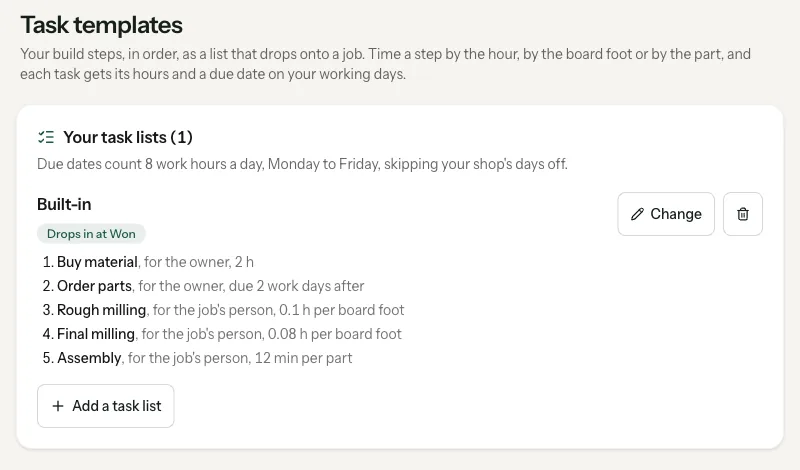
Write your build steps once, in order: buy material, order parts, rough mill, final mill, assembly, finish. Give each step a person and a time, by the hour, by the board foot or by the part, and add the whole list to a job when it's sold. Due dates then fall on your real working days, skipping the days the shop is off.
The steps for a built-in are the same every time. Writing them out on every job is how one gets missed.
One list per kind of job.
Make a list per kind of job.
A built-in, a table, a vanity. Each has its own steps.
Put the steps in build order.
Buy material, order parts, rough mill, final mill, assembly, sand, finish.
Give every step a person.
The job's lead, the owner, or a named person on the crew.
Time the steps that scale.
Planing and jointing go by the board foot. Cutting and assembly go by the part. Set hours for everything else.
Due dates on real working days.
Count your real shop hours a day and skip the days you're off.
Drop it on when the job is sold.
Same list, every job, without retyping it.
Know how it leaves the shop.
Install, delivery or pickup changes the last steps and when the final invoice goes out.
Task templates.
The owner makes lists in Settings, Task templates: a list name like Built-in or Table, then each task with who it's for, when it's due, and its timing. Timing is No timing, Set hours, Hours per board foot or Minutes per part.
- Timed from the job. Board feet come from the job's estimate, parts from its drawing or newest cut list. If the number isn't there, the task says what it needs instead of guessing.
- Due dates on your working days. Hours stack up over your shop's hours a day, Monday to Friday, skipping the shop's days off. Or type work days after the list is added.
- Drops in by itself when a job moves into the stage you pick, or add it from the job's Tasks tab with Add task list. A list goes on a job once.
- Each task shows its estimated hours and the Tasks tab shows the open total.
One list of days off, for everything.
On the Production page, Days the shop is off: tap every day you're not working and save once. Nobody can book an appointment those days, the production schedule builds around them, and task due dates skip them. The same calendar is under Tools, Scheduler, Out of office.
How it leaves the shop.
On the job page, How it leaves the shop is Install, Delivery & Setup or Pickup. For delivery or pickup, the final invoice goes out when the job is ready, and the delivery or pickup booking link follows once it's paid. Paid in cash or check at pickup? Tick it and the booking link goes out without an invoice. The job moves to done once it's delivered or picked up and paid in full.
The Shop Ticket now starts with What we're building, every line from the accepted proposal and invoices, with never a dollar on it.
What it does, and what it leaves to you.
Nothing comes pre-made. Your steps, your times.
Anyone on the team can add one to a job.
Board-foot timing needs an estimate with board feet; part timing needs a drawing or a cut list.
Due dates count weekdays at your shop's hours a day, minus your days off.
More on task lists.
Can tasks be timed by board feet or by part count?
Yes. Set a task to Hours per board foot or Minutes per part, and Square Away works out its hours from the job's estimate, drawing or cut list.
Can a task list add itself to a job?
Yes. Pick a stage for the list, like Won, and it drops onto every job that moves into that stage.
Do task due dates skip days off?
Yes. Due dates count your shop's hours a day on weekdays and skip the days marked off on the Production page.
Is there a cost for task templates?
No. Task templates are on every plan.
Build your first task list on the call.
Tell us how a built-in goes through your shop. We'll write the list and drop it on a real job.